GSA Web Shop - Finding In-Game Icons for In-Game Shop Packs (Vanilla and Modded) #420
Decollates
started this conversation in
Tutorials
Replies: 0 comments
Sign up for free
to join this conversation on GitHub.
Already have an account?
Sign in to comment
Uh oh!
There was an error while loading. Please reload this page.
-
In this tutorial, we will go over steps taken to obtain in-game icons for GSA's in-game shop UI. If you're reading this, then you've probably set up a shop pack that does not have an appropriate icon listed in GSA's already pretty [extensive library of icons], or are looking for an icon that belongs to a mod. To note, this guide was made for ARK; it is unknown if the steps in here will be feasible for users attempting similar packs in other games.
The purpose of this guide is to detail the basic steps to take, and further empower you with the knowledge and curiosity to persevere in case icons are not so easy to find. If it exists in-game, it can be found 99% of the time.
Setting up for Testing
Before we begin, it is highly recommended that we set ourselves up for easy testing before we launch our packs to the general playerbase due to nature of trial-and-error testing for icon paths. The easiest way to set this up is to create an admin-exclusive role that you apply to yourself and your fellow testers, highlighted here:

Now, with the shop pack itself set up to only display to users with the
SHOP WIProle and the packs set toVisible to Anyone, we can reliably test the shop pack in-game without worry about regular players having access to unreleased content.(Setting to


Visible to Anyoneunder theSHOP WIProle prevents the need to go back to individual sub-packs and make them visible one by one when you're releasing your pack to the public; with the proper set-up, this will save you loads of time.)Vanilla Icons - Items
In this example, we're going to use Mutagel from ARK: Surival Evolved as our example. To start, we will need to go into the ARK game files.
Properties.Local Files.Browse.ShooterGame>Content.Mutagel is a resource that was introduced in the Genesis 2 DLC. Therefore, we should look inside the

Genesis2folder first. If we follow the path ofGenesis2>Icons>Items, we will find:Simple, right? WRONG. If we were to simply grab the file's address and put that in the shop pack, it would not work. To get the proper path, we need a hex editor. In this guide, I am using Notepad++, but you can use the editor of your choosing, as long as the results are the same.
Right click and open the file of the icon in your editor.
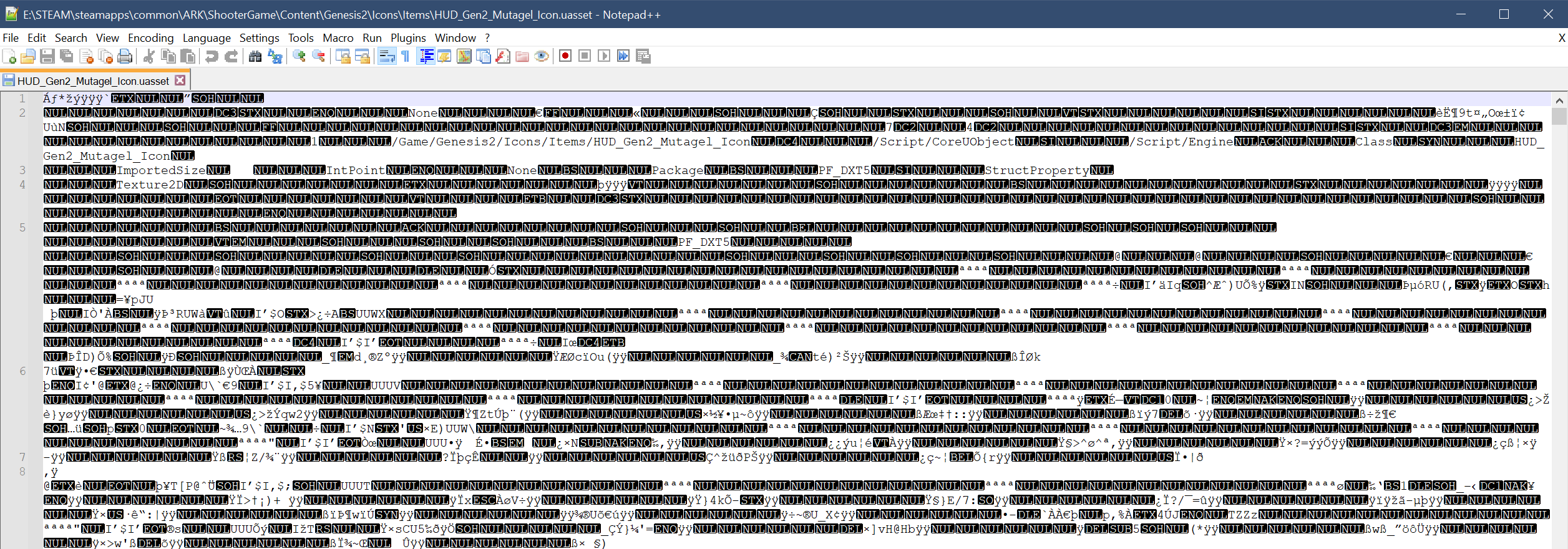
What a mess! This is where you'll need to be vigilant in figuring out what the correct path is for the icon. We can't use any file that has to deal with Mutagel. Typically, the icon path will always reference something like

HUDorIconor evenMICin the name. In this case, the path is fairly straightforward:/Game/Genesis2/Icons/Items/HUD_Gen2_Mutagel_Iconis what we're looking for, but we'll need to adjust the end before we can use it for our shop pack. In simplest turns, the ending tag is to be duplicated as if we're turning it into a file extension:/Game/Genesis2/Icons/Items/HUD_Gen2_Mutagel_Icon.HUD_Gen2_Mutagel_IconAfter saving, it's important to go and check in-game that the file path is correct and yields the result desired:

Modded Icons - Creatures
tba im tired lol
Beta Was this translation helpful? Give feedback.
All reactions