Authentication / SSO with OAuth2 and JWT In React Application With NodeJs Back-end And KeyCloak IAM

We will use Keycloak as IDP, and OAuth 2 with JWT as AuthToken in react application with NodeJS (Express) back-end

KeyCloak IAM

Keycloak is a great tool for IAM from JBOSS, it is easy to get started and configure. Start KeyCloak as follows.

E:\softwares\keycloak-8.0.1\bin>standalone.bat

Add initial console user

E:\softwares\keycloak-8.0.1\bin>add-user.bat -u admin admin
Updated user 'admin' to file 'E:\softwares\keycloak-8.0.1\standalone\configuration\mgmt-users.properties'
Updated user 'admin' to file 'E:\softwares\keycloak-8.0.1\domain\configuration\mgmt-users.properties'
Press any key to continue . . .

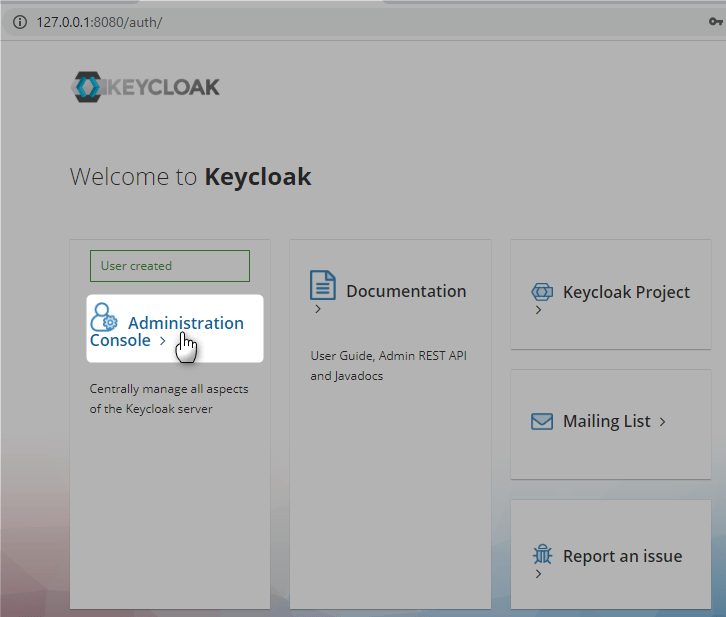
Login with the credentials, created above

Start keycloak application

Create initial keycloak user
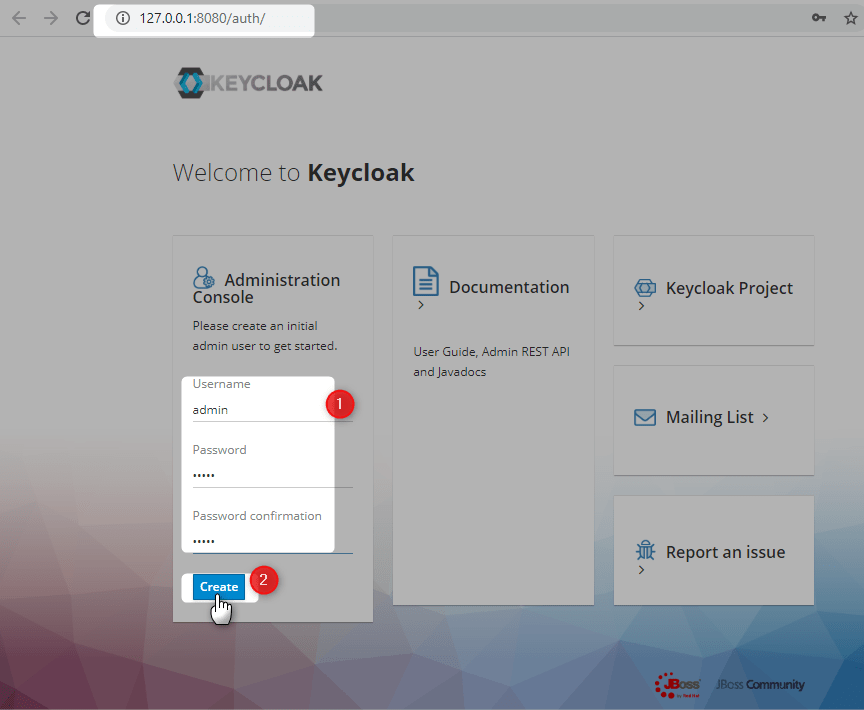
Login with initial keycloak user

Create New Realm

Create new client called react

Access Type should be confidential

Click Save, and go to Roles

New Role demo-user

New Role demo-admin

Client Secret can be found as follows

Add new user mnadeem

Add roles to user

OpenId Configuration

http://127.0.0.1:8080/auth/realms/demo/.well-known/openid-configuration

React App

Lets create react application following this

E:\practices\node>create-react-app react-sso-app
E:\practices\node>code react-sso-app

Create Backend NodeJs API

Lets follow the steps as described in here

E:\practices\node\react-sso-app>mkdir api
E:\practices\node\react-sso-app>cd api
E:\practices\node\react-sso-app\api>npm init --yes

Install dependencies

E:\practices\node\react-sso-app\api> npm install –save-dev babel-cli babel-preset-env nodemon
E:\practices\node\react-sso-app\api>npm install --save express
E:\practices\node\react-sso-app\api>npm install --save-dev rimraf
E:\practices\node\react-sso-app\api>npm install npm-run-all --save-dev

Final package.json of api project under react-sso-app

{
  "name": "api",
  "version": "1.0.0",
  "description": "",
  "main": "index.js",
  "scripts": {
    "test": "echo \"Error: no test specified\" && exit 1",
    "clean": "rimraf ./dist/",
    "build": "babel ./src/ --presets=babel-preset-env --out-dir dist --ignore ./node_modules,./.babelrc,./package.json,./npm-debug.log --copy-files",
    "server:dev": "nodemon ./src/server.js --exec babel-node --presets babel-preset-env",
    "server:prod": "node ./dist/server.js",
    "prod": "npm-run-all clean build server:prod",
    "dev": "npm-run-all server:dev"
  },
  "keywords": [],
  "author": "",
  "license": "ISC",
  "devDependencies": {
    "babel-cli": "^6.26.0",
    "babel-preset-env": "^1.7.0",
    "nodemon": "^2.0.2",
    "npm-run-all": "^4.1.5",
    "rimraf": "^3.0.1"
  },
  "dependencies": {
    "express": "^4.17.1"
  }
}

Add api to workspace

Create files, .babelrc, server.js

E:\practices\node\react-sso-app\api>npm run dev

> [email protected] dev E:\practices\node\react-sso-app\api
> npm-run-all server:dev


> [email protected] server:dev E:\practices\node\react-sso-app\api
> nodemon ./src/server.js --exec babel-node --presets babel-preset-env

[nodemon] 2.0.2
[nodemon] to restart at any time, enter `rs`
[nodemon] watching dir(s): *.*
[nodemon] watching extensions: js,mjs,json
[nodemon] starting `babel-node ./src/server.js --presets babel-preset-env`
App is listening for requests on port 5555

Lets install the following package

E:\practices\node\react-sso-app\api>npm install --save dotenv

lets create .env file (for local use) in api project

You can get all the details from keycloak (http://127.0.0.1:8080/auth/realms/demo/.well-known/openid-configuration)

SSO_CLIENT_ID=react
SSO_CLIENT_SECRET=202f6844-8b88-45b8-898a-327a74c10ab1
SSO_AUTH_URL=http://127.0.0.1:8080/auth/realms/demo/protocol/openid-connect/auth
SSO_TOKEN_URL=http://127.0.0.1:8080/auth/realms/demo/protocol/openid-connect/token
SSO_SCOPE=openid profile User roles
SSO_REDIRECT_URI=http://localhost:3000

TOKEN_SECRET=2423sdfsfsd3432fdwrerwtg

Lets add the following dependency

E:\practices\node\react-sso-app\api>npm install --save request-promise
E:\practices\node\react-sso-app\api>npm install --save jsonwebtoken

For more details look into the api project and react project

Lets start the api project

E:\practices\node\react-sso-app\api>npm run dev
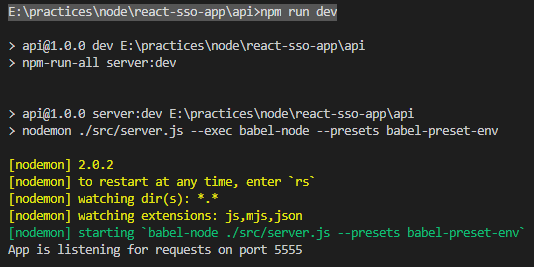
Lets start the react project

e:\practices\node\react-sso-app>npm start

Demo

Make sure keycloak is running.
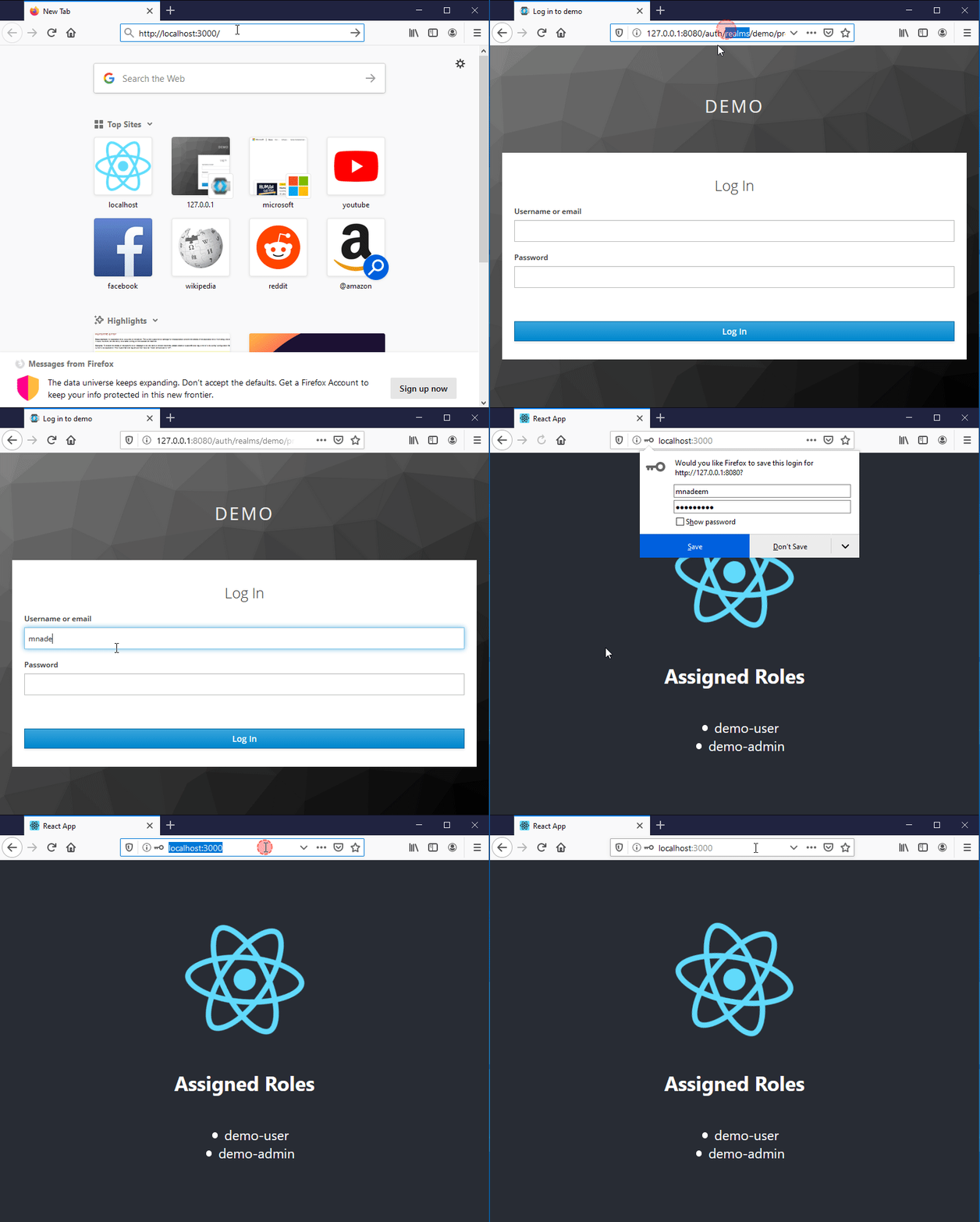
Key Points

There are three basic things:

  • Redirecting to IDP for authorization code
  • Get the JWT as auth token
  • Re authenticate using JWT until token is valid.

Source Code

Mocking Web/Rest Services Made Easy

Lets create webserver.sh

#!/usr/bin/env bash
RESPONSE="HTTP/1.1 ${3:-200} ${4:-OK}\r\nConnection: keep-alive\r\n\r\n${2:-"OK"}\r\n"
while { echo -en "$RESPONSE"; } | nc -l "${1:-8080}"; do
  echo "================================================"
done

webserver.sh has got 4 paramaters

sh webserver.sh port response responseCode responseMessage
 
 
# Examples
sh webserver.sh 8087
sh webserver.sh 8087 "Error" 500 "Internal Server Error"
sh webserver.sh 8087 "You are not Authorized" 403 "Un Authorized"

Port

Any number defaults to 8080

Response

Any String default to OK

Response Code

Any Number default to 200

Response Message

Any String default to OK

Example #1 403

Lets start the server

[admin@host ~]$ sh webserver.sh 8087 "You are not Authorized" 403 "Un Authorized"

Example #2 500

Lets start the server

[admin@host ~]sh webserver.sh 8087 "Error" 500 "Internal Server Error"

Possibilities

You can run multiple webservers on different ports on same machine.

Post data using CURL

[admin@clienthost ~]$ curl -H "Content-type:application/json" -X POST -u C2214CAB-41B4-42BA-983F-617E427B4220: "mockserver:8087" -d '{"Id":"123","orgCode":"ABC","jobId":"321","applicationStatus":"cancel"}'
OK
[admin@clienthost ~]$

Post data using WGET

[admin@clienthost ~]$ wget --user-agent=Mozilla/5.0  --post-data '{"Id":"123","orgCode":"ABC","jobId":"321","applicationStatus":"cancel"}' --no-check-certificate mockhost:8087 --header="Content-Type: application/json"

Tools

Following tools would be useful, if the services are not available at the time it is required. Just mock the service and go ahead.

Implementing SCORM PLAYER

Introduction

Watch this Nice Video to get a better understand of the subject. In short there are four entities involved, content/course provider, courses/contents, Learning management system and Users,

Content provider provides the same content/course in some format (scorm, tin can, aicc, cmi5 etc) to various other learning management systems targeted specifically for the users of that system.


scrom-entities

Entities

There are four major entities involved here :

  • Content/Course : These are basically html, jawascript, css, swf etc, stuffed with api (scorm, tin can, cmi5 etc) calls to get/update the status/data/progress etc.
  • Course Provider : Provides content as per the various specifications.
  • User : Interested in taking up  the courses with LMS.
  • Learning Management System (LMS) : Keeps tracks of users learning experience. It records Users interactions with Course using Specification/API defined by the Course.

course

Communication

There are different communications across the entities.

Between Course Provider And LMS

Courses are imported into LMS using various mechanisms

  • FTP Location
  • API exposed by Course Provider
  • Manually using LMS Web interface


course-lms

Between LMS And Users

User intents to LMS to play a specific course (Which is previously imported into LMS), LMS routes to Course Player to play the specific course based on the course type, now each course has API calls to LMS to get/set specific interaction with the user.


lms-user

course-rendering


Components

As can be seen here, while implementing a course player we have to focus on two aspects,

  • Client Side : Couple of JavaScript (Even ActionScript) Implementations are available (Refer References section below), in our case we would be using the learn implementation.
  • Server Side : Focuses on persisting/Getting the information from the server side, and defines what happens when user interacts with the course (Scorm 1.2 Java Implementation for reference purpose only)

components

Refer the following more details on Technical Side of SCORM

  • Article One : Describes about Content Packaging and API
  • Technical SCORM : Describes about SCROM Runtime, Packaging and Sequencing


References

Encryption And Signing

Symmetric Encryption

Same key is used to encrypt and decrypt

symetric

Public Key Infrastructure (PKI)

Asymmetric Encryption

To solve the problem of negotiating 100 keys if you want to send something privately to 100 individuals/system, public/private key is used. If a message is encrypted using public key then it can be decrypted only with private key, and on the same line if a message is encrypted using private key then it can decrypted using only public key (not even with private key)

asymetric-encrypt
asymetric-decrypt
  • Key-pair (private/public) is generated by owner.
  • Private key is kept confidential, while public key is shared with every one.
  • It is difficult (next to impossible) to derive private key from public key.

Suppose you are planning to send a message to James privately, you would use his public key to encrypt the message. Even though other people know the public, they cant decrypt it, only James knows the private key so he can decrypt it.

asymetric-key-pair

Digital Signature

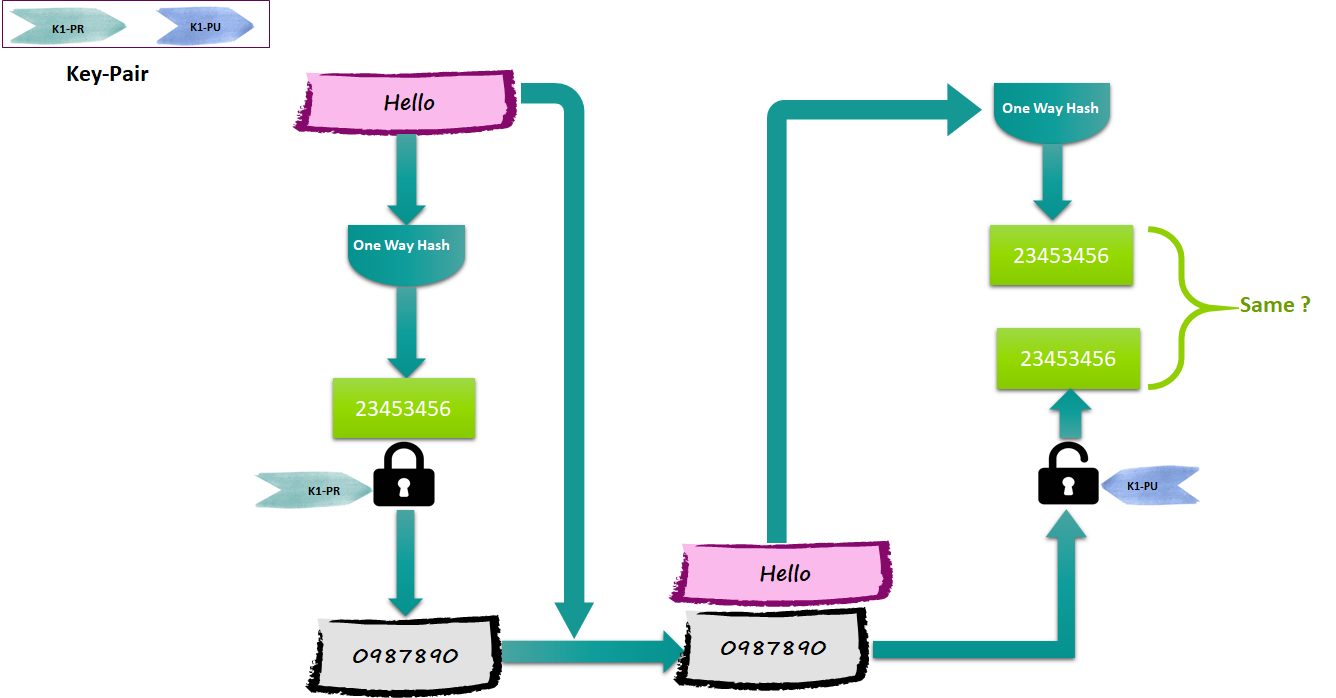
Lets assume that the message you send to James is not confidential however James should know the message is really from you. You can use your private key to encrypt the message, and then James can use your public key to decrypt the message. However this is not feasible if the message is too long, since the encrypted message would get doubled and it is time consuming operation. To solve this you can feed the message to a one way hash function to produce a result (message digest) of same size always (depending upon the algorithm)

Features of one way hash function

  • Extremely fast
  • impossible to create message from a digest
one-way-hash

Now to prove James you are, who you are claiming to be, you can use your private key to encrypt the message digest and then send both the message and the digest to James.

James can decrypt the digest using your public key, and calculate the digest from the original message and finally compare the message digests.

digital-signature

The Encrypted digest is called the “Digital Signature” and  the whole process of calculating the digest and then encrypting it is called “signing the message“.

Signing And Encrypting

What if you would like to prove to James, you are, who you are claiming to be at the same time want to make sure message is received only by James.

Follow the diagram.

signing-encryption

Certificate And CA

The problem of how do we get ones certificate (without being trapped) and most importantly how do we distribute to many individuals is solved by Certificate and CA.

You go to a authority, stating your public key with and ID proof, the authority generates and electronic message stating your public key and signing with his (authority) private key.

Such a signed message is called certificate and such an authority is called Certificate Authority (CA)

certificate

Finally

In order to use asymmetric encryption and digital signature, following are required

  • Private Keys
  • Public Keys
  • Certificates
  • CA

All the above combined is called Public Key Infrastructure (PKI)

References

Publish Your Artifacts To Maven Central

Step by step guide to deploying  arftifacts to maven central. For this blog we will use Github

Prerequisites

Step1: Make sure if you have installed JDK,Maven, Git etc.

Step 2: Create Github account (If not already done)

Refer https://help.github.com/articles/signing-up-for-a-new-github-account/

Step 3: Create a new Github repository

Refer https://help.github.com/articles/create-a-repo/

Step 4: Add a new SSH key to your Github account

https://help.github.com/articles/create-a-repo/

Step 5: Push the code to Github

https://help.github.com/articles/adding-an-existing-project-to-github-using-the-command-line/

Step 6: Sign up for Sonatype Jira account

https://issues.sonatype.org/secure/Signup!default.jspa

Step 7: Create A Jira issue for new project hosting

Here is a sample request https://issues.sonatype.org/browse/OSSRH-24465

sonatype-new-project-jira-request

Step 8: Install GNU PG

Download from https://www.gnupg.org/download/ and install in your OS, verify as follows

C:\Users\Nadeem>gpg --version
gpg (GnuPG) 2.1.15
libgcrypt 1.7.3
Copyright (C) 2016 Free Software Foundation, Inc.
License GPLv3+: GNU GPL version 3 or later <https://gnu.org/licenses/gpl.html&gt;
This is free software: you are free to change and redistribute it.
There is NO WARRANTY, to the extent permitted by law.
Home: C:/Users/Nadeem/AppData/Roaming/gnupg
Supported algorithms:
Pubkey: RSA, ELG, DSA, ECDH, ECDSA, EDDSA
Cipher: IDEA, 3DES, CAST5, BLOWFISH, AES, AES192, AES256, TWOFISH,
CAMELLIA128, CAMELLIA192, CAMELLIA256
Hash: SHA1, RIPEMD160, SHA256, SHA384, SHA512, SHA224
Compression: Uncompressed, ZIP, ZLIB, BZIP2
C:\Users\Nadeem>
view raw gpg-verify.ps1 hosted with ❤ by GitHub

Step 9: Generate the key pair

It would prompt you for phrase

gpg-passphrase-prompt

Publishing Steps

Step 1: Add distributed management section in your POM.

Add deploy plugin

Add distribution Management Section in your POM

Step 2: Add ossrh server detail into your settings.xml under M2_REPO home.

Id element of servers/server in settings.xml should be identical to id element of snapshotRepository and repository in your POM file.

Step 3:  Add SCM section in your POM

Step 4:  Add maven release plugin

Add GPG passphrase as profile in maven settings.xml, passphrase you have generated while generating the key

Add nexus staging maven plugin

Step 5 : Add source and javadoc plugin

Step 6:  Configure to Sign artificats while releasing

Configure to sign artifacts while releasing

Step 7: Publish GPG key pair

Distribute your key to GPG servers

gpg --keyserver [KEY_SERVER] --send-key [KEY_ID]
gpg --keyserver http://keys.gnupg.net:11371/ --send-key  7743E4C5134ABD42997425B1BF725DE4CBBC7E00

KEY_ID in the above case is 5694AA563793429557F1727835B3BD2A223A

Some of the key servers

Step 8: Do the release

mvn clean

mvn release:prepare

mvn release:perform

Step 9: push the tag and code to your remote repo

git push –tags

git push origin master

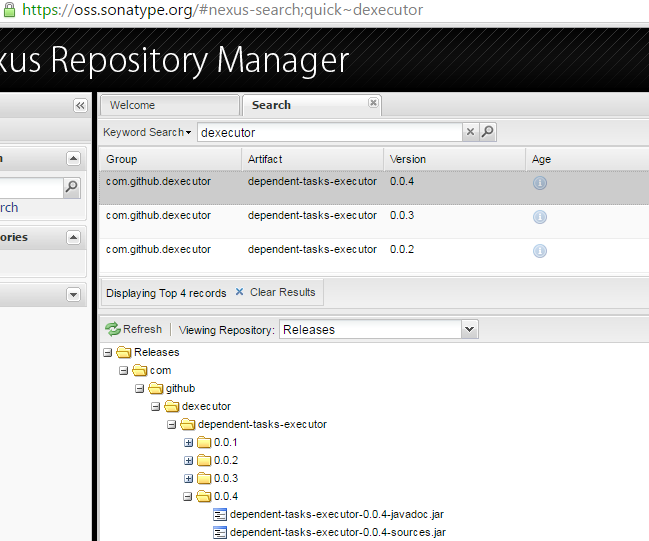
Step 10: Verify the sonatype repository

verify-sonatype-repo

Step 11: Update the Sonatype Jira Ticket

update-sonatpe-jira-about-release

Refer this example POM file for more detail

If something goes wrong

Step 1: Undo the release

git reset –hard HEAD~1(You may have to do it second time, depending upon when the error happened)

git reset –hard HEAD~1

Step 2: Delete the tag

git tag -d tagName

git push origin :refs/tags/tagName

References

  1. http://central.sonatype.org/pages/producers.html
  2. http://central.sonatype.org/pages/ossrh-guide.html
  3. http://central.sonatype.org/pages/apache-maven.html
  4. http://central.sonatype.org/pages/working-with-pgp-signatures.html
  5. https://github.com/dexecutor/dependent-tasks-executor
  6. http://stackoverflow.com/questions/5195859/push-a-tag-to-a-remote-repository-using-git
  7. https://oss.sonatype.org/
  8. https://fedoraproject.org/wiki/Creating_GPG_Keys
  9. https://ekaia.org/blog/2009/05/10/creating-new-gpgkey/
  10. https://access.redhat.com/documentation/en-US/Red_Hat_Enterprise_Linux/4/html/Step_by_Step_Guide/s1-gnupg-keypair.html
  11. https://wiki.debian.org/Keysigning

Pseudocode/Algorithm Editor

Generate Nice Pseudo code/Algorithm using LATEX editors Online Free Editor : ShareLateX Desktop Editor : TeXStudio

\documentclass{article}
\usepackage[utf8]{inputenc}
\usepackage{geometry}
\usepackage{algorithm}
\usepackage{algpseudocode}
\begin{document}
% Insert the algorithm
\begin{algorithm}
\caption{Compute sum of integers in array}
\label{array-sum}
\begin{algorithmic}[1]
\Procedure{ArraySum}{$A$}
\State $sum = 0$
\For {each integer $i$ in $A$}
\State $sum = sum + i$
\EndFor
\State Return $sum$
\EndProcedure
\end{algorithmic}
\end{algorithm}
\end{document}

Some more desktop based tools

Integrating Keycloak With SonarQube

sonar-keycloak
You can grab the plugin here

Step 1: Create a Realm
ks1

Step 2: Create An Application

ks2

Step 3: Copy the keycloak.json

ks3

Step 4: Replace the new lines in json file

ks4

Step 5:  Configure Sonar

ks5

Step 6:  Copy the Plugin to Sonar Extensions

ks6

Step 7:  Login to Sonar

ks7

Step 8: You would be redirected to Keycloak

ks8

Step 9: Successful Login

ks9

Refer this if you would like to integrate Keycloak with Jenkins

Deploying Keycloak In TomEE

We would be using apache-tomee-plus-1.7.1 and Keycloak 1.1.0.Beta2

Refer this blog first Deploying Keycloak In Tomcat

Step 1: Configure TomEE for Hibernate instead of OpenJPA

Follow the guidelines here  to configure Hibernate

kte1

kte3

Step 2 : Configure TomEE with DataSource

Follow the guidelines here  and here to configure datasource

Since we would be using H2 database, copy h2-1.3.176.jar to TOMEE_HOME/lib

Modify the TOMEE_HOME/conf/tomee.xml as follows

kte2

Step 3 : Configure the Keycloak Server

Download the keycloak-server from github

Change the datasource name as follows

For TomcatEE external JNDI name starts with java:comp (Not  java:comp/env as is Pure Tomcat)

kte4

Deploy to TomEE and start the server, you would get the following error

kte5

Step 4 : Fix the issues

Create the policyConfgi.xml as follows

kte6

Step 5 : Have fun

Login to app with admin/admin

kte7

Deploying Keycloak In Tomcat

Introduction

Note: You can download the source from github

AS per the Keycloak documentation currently server installation is supported only in Jboss Servers (AS,Wildfly and EAP), However it does not make sense for Organizations to use JBOSS servers only to host Keycloak, Verily they would be running servers other than JBOSS (Tomcat, Jetty, Glassfish etc.)

kt14

As per the documentation it must be a easy task for the other servers, let’s explore.

Setup

If you do a build of the keycloak server, and deploy the war to Tomcat

kt14

 Issue #1

You will get the following error, which definitely seems to be pom issue

kt14

After adding required dependency you may get other ClassNotFoundExceptions, and finally you may add the following dependencies in your pom file

[gist https://gist.github.com/mnadeem/194b09fdbf8df0e8f0d2 /]

 Issue #2

This time you would get the following error

kt14

The issue is that ResteasyProviderFactory does not have instance of org.jboss.resteasy.core.Dispatcher and javax.servlet.ServletContext so that it can inject to KeycloakAppication

kt14

To fix the issue here is what I have done.

kt14

Make sure the following dependency is also added in the pom file

<dependency>

    <groupId>javax.servlet</groupId>

    <artifactId>javax.servlet-api</artifactId>

    <scope>provided</scope>

    <version>3.1.0</version>

</dependency>

 Issue #3

After fixing the above issues you may get the following issue

kt14

The Tomcat Resource has to be configured properly

kt14

kt14

 For Tomcat external JNDI name starts with java:comp/env

Issue #4

This time you would get the following error

kt14

Copy the following jars to you TOMCAT_HOME/lib directory

kt14

Create setenv.bat/setenv.sh with the following content and copy it to TOMCAT_HOME/bin

CATALINA_OPTS=-Djavax.persistence.provider=org.hibernate.ejb.HibernatePersistence

Things should be working like a charm now

kt14

kt14

kt14

Two Issues on Keycloak

Issue #1 : No data for Dispather and ServletContext in ResteasyProviderFactory

Issue #2: keycloak-server.json is loaded from incorrect place, i.e, classes/META-INF

 config = Thread.currentThread().getContextClassLoader().getResource(“META-INF/keycloak-server.json”);

Refer this for TomEE setup