
The cat (concatenate) command in Linux is used to view, create, and combine file contents directly from the terminal. It allows users to quickly work with file content without opening a text editor.
- Primarily used to display the contents of files on the terminal.
- Can concatenate multiple files and display them as a single continuous output.
- Helps in creating new files or appending data to existing ones.
- Useful for quick file inspection, debugging, and scripting tasks without opening a text editor.
Examples
Below are some basic and commonly used examples of the cat command in Linux.
1: View the Content of a Single File in Linux
To display the content of a single file in the terminal.
Syntax:
cat file_nameExample:
cat jayesh.txt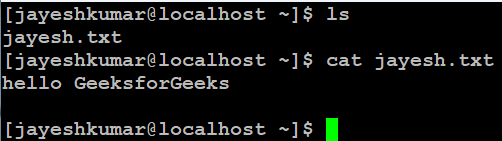
ls command is used to display all files and directories in the current location.
2: View the Content of a File Using Full Path
You can also read a file using its complete path instead of just the filename.
Syntax:
cat /path/to/filenameExample:
cat /home/sahil/GFG/test.txt
3. View the Content of Multiple Files in Linux
The cat command can display the content of more than one file together. The output of the first file appears first, followed by the second file.
Syntax:
cat file_name1 file_name2Example: If we have two files , file1 and file2.
cat file1 file2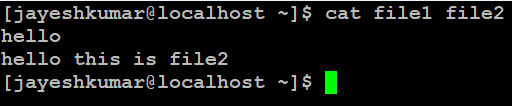
4. Create a New File and Add Content Using cat Command
The cat command can be used to create a new file or overwrite an existing file with new content using output redirection (>):
Syntax:
cat > file_name- Type your content
- Press Ctrl + D to save and exit
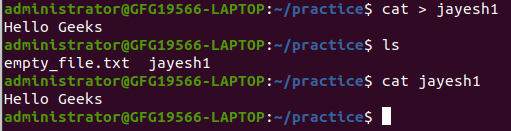
Example: If we want to create a new file named jayesh1.
cat > jayesh1This allows you to type text directly into the terminal, and once you press Ctrl + D, the entered text is saved into jayesh1.
5. Copy or Merge File Contents Using cat Command
The `cat` command can combine the content of one or more files and redirect it into another file using >.
Syntax:
cat file1 file2 > new_fileExample:
cat file1.txt file2.txt > merged_file.txt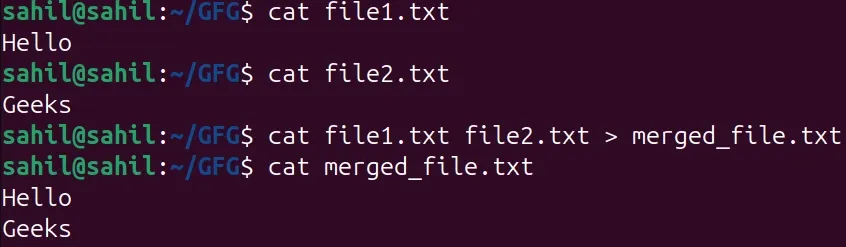
This command combines the content of file1.txt and file2.txt into a new file named merged_file.txt.
Syntax of cat Command
The basic syntax of the cat command is as follows:
cat [options] file_name- [options]: Additional flags to modify the behavior of the command.
- [file_name]: One or more files to read, create, or combine.
Examples of cat Command Using Options
The cat command provides different options to enhance how file content is displayed. Some commonly used options are shown below:
1. View File Content with Line Numbers using option -n
The `-n` option is used to display the content of a file along with line numbers. It helps in identifying and referring to specific lines in a file.
Syntax:
cat -n file_nameExample:
cat -n file2
This will display each line of file2.txt with its respective line number.
2. Suppress Repeated Empty Lines using option -s
The -s option is used to remove multiple consecutive empty lines from the output. It helps in producing a cleaner and more readable file display.
Syntax:
cat -s file_nameExample:
cat -s sample.txt
This will display the content of file2.txt while suppressing repeated blank lines in the output.
3. Highlight End of Each Line Using option -E
The -E option is used to highlight the end of each line by displaying a $ symbol. It helps in identifying line endings, especially while dealing with spaces or formatting issues.
Syntax :
cat -E file_nameExample:
cat -E jayesh1.txt
This will display the content of jayesh1.txt with a $ symbol at the end of every line.
4. Display Non-Printing Characters Using option -A
The -A option is used to make non-printing characters visible in the output. It is helpful while debugging files that contain hidden characters such as tabs or special formatting symbols.
Syntax:
cat -A file_nameExample:
cat -A sample.txt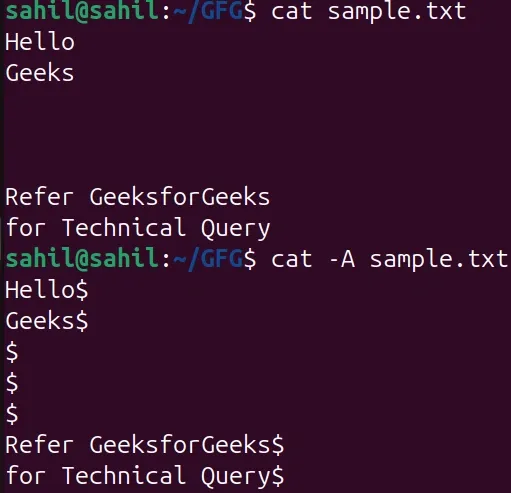
Note: This will display the content of sample.txt while showing: End of line as $
5. Open Files Whose Names Start with a Dash Using --
When a filename begins with a dash (-), Linux may treat it as a command option. The -- option is used with cat to tell the system that what follows is a filename, not an option.
Syntax:
cat -- file_nameExample:
cat -- -jayesh2
This will display the content of a file named "-jayesh2"
Some Other cat Command in Linux
Apart from basic usage and options, the cat command is also used in many practical situations. Below are some additional practical uses of the cat command.
1. Merge Contents of Multiple Files into a Single File
The cat command can merge the contents of multiple files and store them into a new file using the redirection operator (>). This is useful when combining logs, text data, or documentation files.
Syntax:
cat file1 file2 file3 > merged_fileExample:
cat "file1" "file2" "file3" > "merged123"
This will combine the contents of file1.txt, file2.txt, and file3.txt and save them into merged123.txt.
2. Append the Content of One File to Another File
The append operator >> is used along with the cat command to add the content of one file to the end of another file without overwriting its existing data.
Syntax:
cat file_name1 >> file_name2Example:
cat file1 >> file2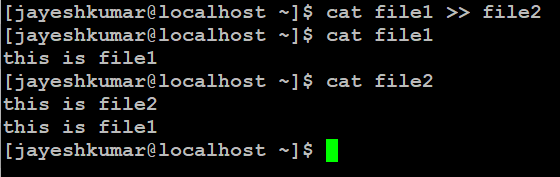
This will append the content of file1.txt to the end of file2.txt.
3. Append Content to an Existing File Using cat Command
The cat command can append new text to an existing file using the append redirection operator (>>).
- This is useful when you want to add more content without overwriting the existing data.
Syntax:
cat >> file_name
Type your content
Press Ctrl + D to save and exit
Example:
cat >> geeks.txt
The newly added text.
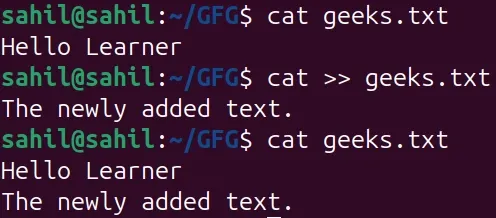
Here, This will append the text to the end of geeks.txt instead of replacing its existing content.
4. Display File Content in Reverse Order Using `tac` Command
The tac command works opposite to cat. It displays the content of a file in reverse order, meaning the last line appears first and the first line appears last.
Syntax:
tac file_nameExample:
tac file2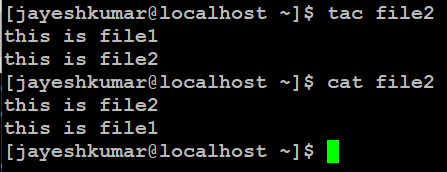
This will print the content of file2.txt in reverse order line-by-line.
5. Display Content of All Text Files in a Folder Using `cat` Command
The cat command can display the content of all text files in the current directory using the wildcard *.txt. This is useful when you want to quickly read multiple text files together.
Syntax:
cat *.txtExample:
cat *.txt
This will display the content of all files ending with .txt in the current directory one after another.
