Showing posts with label Docker. Show all posts

Tuesday, December 7, 2021

Installing Docker on Windows

In this tutorial you'll see how to install Docker desktop on windows.

1. Go to https://docs.docker.com/

Click on Download and install.

2. In the next page click on the OS for which you want to check the system requirement. For windows click on "Docker desktop for windows".

3. In the same page you will also see a link to download Docker Desktop for Windows. By clicking that you can download Docker Desktop Installer.exe but before starting to install Docker there are other steps to be taken care of as detailed in System requirements.

4. Enabling WSL2 (Windows Subsystem for Linux version 2) feature on Windows. You can follow the steps as detailed here- https://docs.microsoft.com/en-us/windows/wsl/install

Actually, only a single command is needed now to install everything you need to run Windows Subsystem for Linux (WSL).

wsl --install

You can enter this command in an administrator PowerShell or Windows Command Prompt. This command will enable the required optional components, download the latest Linux kernel, set WSL 2 as your default, and install a Linux distribution for you (Ubuntu by default). Restart the machine after running this command.

5. Download and install the Linux kernel update package. You can download the latest package from this location- https://docs.microsoft.com/en-us/windows/wsl/install-manual#step-4---download-the-linux-kernel-update-package

Run the downloaded update package (wsl_update_x64.msi)

6. Once the step 4 and 5 are completed you can install Docker Desktop on Windows. Double-click Docker Desktop Installer.exe to run the installer. When prompted, ensure the Enable Hyper-V Windows Features or the Install required Windows components for WSL 2 option (in our case) is selected on the Configuration page. Follow the instructions on the installation wizard to authorize the installer and proceed with the install.

When the installation is successful, click Close to complete the installation process.

Verifying the installation

Once the Docker installation is completed you can verify that it is correctly installed by using the following steps.

1. On command prompt if you just type docker you should get the list of available options rather than an error.

C:\Users\DockerUser>docker

Usage:  docker [OPTIONS] COMMAND

A self-sufficient runtime for containers

Options:
      --config string      Location of client config files (default
                           "C:\\Users\\anshu\\.docker")
  -c, --context string     Name of the context to use to connect to the
                           daemon (overrides DOCKER_HOST env var and
                           default context set with "docker context use")
  -D, --debug              Enable debug mode
  -H, --host list          Daemon socket(s) to connect to

2. You can run the hello-world image which is already stored in Dockerhub.

C:\Users\DockerUser>docker run hello-world

That's all for this topic Installing Docker on Windows. If you have any doubt or any suggestions to make please drop a comment. Thanks!


Related Topics

  1. Docker Tutorial: Introduction to Docker
  2. Run Java Application in Docker Container
  3. Run Python Application in Docker Container
  4. Java Application With User Input in Docker Container

You may also like-

  1. Java Stream - sorted() With Examples
  2. getPath(), getCanonicalPath() and getAbsolutePath() Methods in Java
  3. Java Automatic Numeric Type Promotion
  4. Tree Sort in Java Using Binary Search Tree
  5. Difference Between Abstract Class And Interface in Java
  6. @Required Annotation in Spring Framework
  7. Navigate to a Route Programmatically in Angular
  8. Injector Hierarchy and Service Instances in Angular

Monday, December 6, 2021

Docker Tutorial: Introduction to Docker

Docker is a containerization technology for developing, shipping, and running applications.


What is Docker

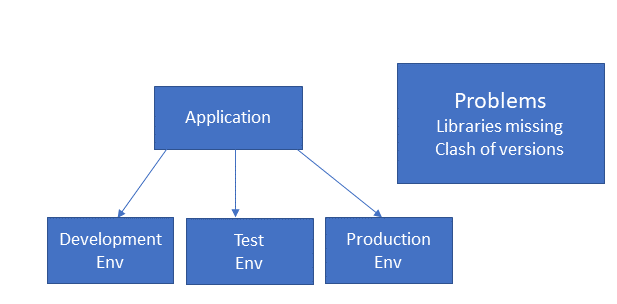
Docker is an open platform which helps in developing, deploying and running applications in a same standardized environment. One of the main tasks while developing any application is to have development, test and production environment and ensuring that all the dependencies that are required to run the application are properly installed so that the code running in one environment doesn't stop working in another environment when deployed.

Different Environments

With Docker you can package and run an application in a loosely isolated environment called a container. A standard Docker container contains everything needed to run the application, so you do not need to rely on what is currently installed on the host. Here main point is that it "contains everything" which means-

Application Code + binaries + libraries

This standardization allows containers to run in any environment so you can easily share containers and be sure that everyone you share with gets the same container that works in the same way.

Docker platform helps in managing the application lifecycle-

  1. You can develop your application using containers.
  2. Same container can be distributed to other developers (as Docker image) working on the same projects so that all have the same version of dependencies.
  3. Deploy your application into your test environment, as a container.
  4. When application is ready, deploy your application into your production environment, as a container.

Containerization Vs Virtualization

If there is a need to run several applications on one machine, before Docker standard way to do that was creating Virtual Machines (VMs). With VMs you get full process isolation as each VM has its own OS so with in a system you have multiple operating systems and a hypervisor sits between the host system and VMs to share and manage the hardware and to manage guest operating systems.

Virtual machines

Containerization is different from virtualization because each container shares the kernel within the host OS. Each container won't have an OS installed they share the underlying host OS kernel with the other containers. With Docker the entity that sits between the host OS and the containers and also responsible for creating and running containers is known as Docker engine.

Containerization

Basic Docker terminology

As a beginner first three phrases you will encounter are Dockerfile, image and container.

  • Dockerfile- Dockerfile is a file having instructions to create the image and run it. Each instruction in a Dockerfile creates a layer in the image. See an example of creating a Dockerfile in this post- Run Java Application in Docker Container
  • Image- Using Dockerfile you can build your own image or you can just pull images created by others and published in a registry. An image is a read-only template with instructions for creating a Docker container.
  • Container- A container is a runnable instance of an image. A Container run as standalone entity well isolated from other containers and its host machine.

Docker architecture

Docker uses a client-server architecture. Using client you can send commands like docker build, docker run and Docker daemon does the actual task of building, running, and distributing your Docker containers. The Docker client and daemon communicate using a REST API.

docker build command is used to build an image following image shows the communication between client and daemon to execute this command

Docker architecture

Advantages of Docker

  1. As we have seen in the section Containerization Vs Virtualization, containers share the host OS that makes them very lightweight, memory efficient and fast.
  2. Docker containers are portable and can run in any environment. Docker containers can run on a developer’s local system, on physical or virtual machines in a data centre, on cloud providers or in a mixture of environments without making any change in the code.
  3. This portability also makes scaling up and tearing down applications scalable. It is as easy as running more containers or stopping containers.

Reference: https://docs.docker.com/get-started/overview/

That's all for this topic Docker Tutorial: Introduction to Docker. If you have any doubt or any suggestions to make please drop a comment. Thanks!


Related Topics

  1. Installing Docker on Windows
  2. Run Python Application in Docker Container
  3. Java Application With User Input in Docker Container

You may also like-

  1. Java Stream API Tutorial
  2. ConcurrentSkipListMap in Java With Examples
  3. Constructor Overloading in Java
  4. Java Multithreading Interview Questions And Answers
  5. Python Generator, Generator Expression, Yield Statement
  6. Spring MVC XML Configuration Example With Annotations
  7. How to Check Hadoop MapReduce Logs

Tuesday, November 30, 2021

Java Application With User Input in Docker Container

In this tutorial you will see how to run a Java program that needs user input using Docker so the aim is to dockerize a Java application so that the Docker container is interactive.

1. Java program

We'll start by writing a Java program that uses Scanner to take input from console and checks whether the entered number is a prime number or not.

package org.netjs.prgrm;

import java.util.Scanner;

public class PrimeNumber {

  public static void main(String[] args) {
    Scanner sc = new Scanner(System.in);
    System.out.println("Please enter a number: ");
    int num = sc.nextInt();
    boolean isPrime = true;  
    for(int i = 2; i < num/2; i++) {
      if(num % i == 0) {
        isPrime = false;
        break;
      }
    }  
    if(isPrime)
      System.out.println(num + " is a prime number");
    else
      System.out.println(num + " is not a prime number");

    sc.close();
  }
}

2. Creating Dockerfile

FROM openjdk:12-alpine

COPY . /usr/src/myjavaapp

WORKDIR /usr/src/myjavaapp

RUN javac PrimeNumber.java -d bin

CMD ["java", "-cp", "bin", "org.netjs.prgrm.PrimeNumber"]

For detailed explanation of Dockerfile instructions please refer this post- Run Java Application in Docker Container

Note here that -d option is used with javac to set the destination directory for the class files. When the PrimeNumber.java is compiled the resultant .class file is stored in the bin directory (with in the WORKDIR /usr/src/myjavaapp) specified with the -d option.

Another thing to note here is that package is also specified in the Java file that is why fully qualified name is given in the CMD instruction when the program is executed.

3. Build image

Following command builds the image and names the image as java-app.

docker build -t java-app .

4. Run Docker Image

Once the Docker image is created successfully you can run it using the docker run command by providing the name of the image which you want to run. But remember that Docker container has to be interactive, running it simply using run command results in an error as you won't be able to provide input.

D:\NETJS\java-docker>docker run java-app

Please enter a number:
Exception in thread "main" java.util.NoSuchElementException
        at java.base/java.util.Scanner.throwFor(Scanner.java:937)
        at java.base/java.util.Scanner.next(Scanner.java:1594)
        at java.base/java.util.Scanner.nextInt(Scanner.java:2258)
        at java.base/java.util.Scanner.nextInt(Scanner.java:2212)
        at org.netjs.prgrm.PrimeNumber.main(PrimeNumber.java:10)

5. Making Docker container interactive

Docker run command can take the following two options to make it interactive.

-i or -interactive: Keep STDIN open even if not attached

-t, --tty: Allocate a pseudo-TTY

Using these options with the run command does the trick.

 
D:\NETJS\java-docker>docker run -it java-app

Please enter a number:
7
7 is a prime number

That's all for this topic Java Application With User Input in Docker Container. If you have any doubt or any suggestions to make please drop a comment. Thanks!


Related Topics

  1. Run Python Application in Docker Container

You may also like-

  1. AtomicInteger in Java With Examples
  2. Race Condition in Java Multi-Threading
  3. New Date And Time API in Java With Examples
  4. Pre-defined Functional Interfaces in Java
  5. Difference Between Encapsulation And Abstraction in Java
  6. How to Read File From The Last Line in Java
  7. Spring util-namespace Example For Wiring Collection
  8. Angular Route - Passing Static Data

Run Python Application in Docker Container

In this tutorial you will see how to run a HelloWorld Python program using Docker or how to dockerize your Python application to run it with in a Docker container.

Steps to run Python hello world program with Docker

  1. Lets start by creating a separate directory where we can put the Python file and DockerFile.
  2. Create a Python file helloworld.py with in this directory.

    helloworld.py

    class HelloWorld:
        # method
        def display(self):
            print("Hello World Python Program from Docker")
    #creating object
    obj = HelloWorld()
    #calling method
    obj.display()
    
  3. Create a file named Dockerfile with in the same directory. Follow the same name as given with 'D' capitalized and no extension. This is the file which defines the steps needed to create the image and run it.

    Steps for running any application in Docker is to create a Docker image and then create and start a container using that image. Dockerfile has the set of instructions to create the Docker image, each instruction in a Dockerfile creates a layer in the image.

    Dockerfile

    FROM python:3
    COPY . /src/pythonapp
    WORKDIR /src/pythonapp
    CMD ["python", "helloworld.py" ]
    

    Explanation for these steps is as given below-

    • Often, an image is based on another image, in our case initial step is to get Python. Note that Docker container runs in isolation as a stand-alone entity having the application code and the required dependencies to run the application. In order to run our code Python should be installed in the container. There already is a Python image hosted in Docker hub, path is https://hub.docker.com/_/python, that we can pull by giving the name of the image (python) and tag (which indicates Python version, which is 3 in our Dockerfile).
    • COPY instruction is used to copy files or directories from source path to the to the filesystem of the container at the destination path. In our Dockerfile files from the current directory (.) are copied to the path /src/pythonapp in the container.
    • The WORKDIR instruction sets the working directory
    • CMD is used to provide defaults for an executing container. One of the forms for providing CMD instructions is ["executable","param1","param2"]. This form is used in our Dockerfile where "python" is passed as executable and "helloworld.py" is passed as parameter making the command to be executed as python helloworld.py when the container is run.
  4. Build image


    To build an image from the Dockerfile command used is docker build. One of the option you can use with build command is -t which is used to pass a name for your docker image and optionally a tag in a name:tag format.

    Change directory to the path where Dockerfile is stored and run the following command.

    D:\NETJS\python-docker>docker build -t python-hello-world:1.0 .
    

    . means using the current directory as context

    Build command goes through the instructions in the Dockerfile one by one and executes them as you can notice from the screenshot given below. Three instructions out of 4 from the Dockerfile will be executed to create Docker image where as the fourth instruction which is a CMD instruction will be executed when container is run.

    [+] Building 115.6s (8/8) FINISHED
     => [internal] load build definition from Dockerfile                                                                                                         
     => => transferring dockerfile: 131B                                                                                                                         
     => [internal] load .dockerignore                                                                                                                            
     => => transferring context: 2B                                                                                                                              
     => [internal] load metadata for docker.io/library/python:3                                                                                                  
     => [internal] load build context                                                                                                                            
     => => transferring context: 357B                                                                                                                            
     => [1/3] FROM docker.io/library/python:3@sha256:f44726de10d15558e465238b02966a8f83971fd85a4c4b95c263704e6a6012e9                                            
     => => resolve docker.io/library/python:3@sha256:f44726de10d15558e465238b02966a8f83971fd85a4c4b95c263704e6a6012e9                                            
     => => sha256:f48ea80eae5a5683e2a734cf4697827339af3ced11e26d0ad58433ddf6fac24f 8.62kB / 8.62kB                                                               
     => => sha256:647acf3d48c2780e00cd27bb0984367415f270d78477ef9d5b238e6ebd5290da 54.93MB / 54.93MB                                                             
     => => sha256:b02967ef003473d9adc6e20868d9d66af85b0871919bcec92419f65c974aa8ce 5.15MB / 5.15MB                                                               
     => => sha256:e1ad2231829e42e6f095971b5d2dc143d97db2d0870571ba4d29ecd599db62cb 10.87MB / 10.87MB                                                             
     => => sha256:f44726de10d15558e465238b02966a8f83971fd85a4c4b95c263704e6a6012e9 2.60kB / 2.60kB                                                               
     => => sha256:9f4d271aecfec02809b04fa2367895c173cbf2ad03a9b94d7b385498a826d2ce 2.22kB / 2.22kB                                                               
     => => sha256:5576ce26bf1df68da60eeb5162dccde1b69f865d2815aba8b2d29e7181aeb62b 54.57MB / 54.57MB                                                             
     => => sha256:a66b7f31b095b7fa01d8ba10e600a192bab43a1311f50216cf6fa9a45d0f435e 196.50MB / 196.50MB                                                           
     => => sha256:05189b5b27621c90d2dc99c54b36bf5820bb377d96a9947cd1a81438eae46ddf 6.29MB / 6.29MB                                                               
     => => extracting sha256:647acf3d48c2780e00cd27bb0984367415f270d78477ef9d5b238e6ebd5290da                                                                    
     => => sha256:af08e8fda0d6cb4f0394e2d81bc7c3e00c44d04f28c79b195e3e20e53e9e29b8 19.11MB / 19.11MB                                                             
     => => extracting sha256:b02967ef003473d9adc6e20868d9d66af85b0871919bcec92419f65c974aa8ce                                                                    
     => => extracting sha256:e1ad2231829e42e6f095971b5d2dc143d97db2d0870571ba4d29ecd599db62cb                                                                    
     => => sha256:287d56f7527b558bbad5f0dd5f529eb1d161d549cd7634990b203ea1af123f23 233B / 233B                                                                   
     => => sha256:dc0580965fb6016fadf90963a71fdd042a099f6043e816155fb2388c2c78e6a7 2.35MB / 2.35MB                                                               
     => => extracting sha256:5576ce26bf1df68da60eeb5162dccde1b69f865d2815aba8b2d29e7181aeb62b                                                                    
     => => extracting sha256:a66b7f31b095b7fa01d8ba10e600a192bab43a1311f50216cf6fa9a45d0f435e                                                                    
     => => extracting sha256:05189b5b27621c90d2dc99c54b36bf5820bb377d96a9947cd1a81438eae46ddf                                                                    
     => => extracting sha256:af08e8fda0d6cb4f0394e2d81bc7c3e00c44d04f28c79b195e3e20e53e9e29b8                                                                    
     => => extracting sha256:287d56f7527b558bbad5f0dd5f529eb1d161d549cd7634990b203ea1af123f23                                                                    
     => => extracting sha256:dc0580965fb6016fadf90963a71fdd042a099f6043e816155fb2388c2c78e6a7                                                                    
     => [2/3] COPY . /src/pythonapp                                                                                                                              
     => [3/3] WORKDIR /src/pythonapp                                                                                                                             
     => exporting to image                                                                                                                                       
     => => exporting layers                                                                                                                                      
     => => writing image sha256:b84b09f7ce8fc351122d1df9e32f82f9b0aa5808a93123986f5921a61603c9e3                                                                 
     => => naming to docker.io/library/python-hello-world:1.0      
    
  5. Run Docker Image

    Once the Docker image is created successfully you can run it using the docker run command by providing the name of the image which you want to run. Note that a container is a runnable instance of an image so this process can also be described as creating and starting a container where command is run.

    D:\NETJS\python-docker>docker run python-hello-world:1.0
    
    Hello World Python Program from Docker   
    

    As you can see on running the image CMD instruction given in Dockerfile is executed and output is displayed.

That's all for this topic Run Python Application in Docker Container. If you have any doubt or any suggestions to make please drop a comment. Thanks!


Related Topics

  1. Run Java Application in Docker Container

You may also like-

  1. How to Install PostgreSQL on Windows
  2. Transaction Management in Java-JDBC
  3. Try-With-Resources in Java With Examples
  4. static Import in Java With Examples
  5. Private Methods in Java Interface
  6. How to Install Node.js and NPM in Windows
  7. Java String charAt() Method With Examples
  8. Spring Boot REST API CRUD Example With Spring Data JPA

Thursday, November 25, 2021

Run Java Application in Docker Container

In this tutorial you will see how to run a HelloWorld Java program using Docker or how to dockerize your Java application to run it with in a Docker container.

Steps to run Java hello world program with Docker

  1. We'll start by creating a directory where we can put the Java file and DockerFile.
  2. Create a Java file HelloWorld.java with in this directory.

    HelloWorld.java

    public class HelloWorld {
      public static void main(String[] args){
        System.out.print("Java program Hello world From Docker");
      }
    }
    
  3. Create a file named Dockerfile with in the same directory. Do use the exact name for the file with 'D' capitalized and no extension. This is the file which defines the steps needed to create the image and run it.

    Dockerfile is read from top to bottom and each instruction in a Dockerfile creates a layer in the image. When you change the Dockerfile and rebuild the image, only those layers which have changed are rebuilt.

    Dockerfile

    FROM openjdk:12-alpine
    
    COPY . /usr/src/myjavaapp
    
    WORKDIR /usr/src/myjavaapp
    
    RUN javac HelloWorld.java
    
    CMD ["java", "HelloWorld"]
    

    Explanation for these steps is as given below-

    • Docker container runs as a stand-alone container having the application code as well as other dependencies required to run the code. In order to run Java code with in the container JDK is also needed to provide both the build and runtime environment. Often, an image is based on another image and as explained our image is based on the Java image so that's what the first line does. There already is a Java image hosted in Docker hub, path is https://hub.docker.com/_/openjdk, that we can pull by giving the name of the image and tag (which includes Java version).
    • COPY instruction is used to copy files or directories from source path to the to the filesystem of the container at the destination path. In our Dockerfile, files from the current directory (.) are copied to the path /usr/src/myjavaapp in the container.
    • The WORKDIR instruction sets the working directory
    • The RUN instruction will execute any commands, in our case it compiles the Java file using the javac tool.
    • CMD is used to provide defaults for an executing container. One of the forms for providing CMD instructions is ["executable","param1","param2"]. This form is used in our Dockerfile where "java" is passed as executable and "HelloWorld" is passed as parameter making the command to be executed as java HelloWorld when the container is run.
  4. Build image

    docker build command is used to build an image from the Dockerfile. One of the option you can use with build command is -t which is used to pass a name for your docker image and optionally a tag in a name:tag format.

    Change directory to the path where Dockerfile is stored and run the following command.

    D:\NETJS\java-docker>docker build -t java-hello-world:1.0 .
    

    . means using the current directory as context

    Build command goes through the instructions in the Dockerfile one by one and executes them as you can notice from the screen shot given below 1/4, 2/4, 3/4 and 4/4 which means 1 out of 4 instructions, 2 out of 4 instructions and so on.

    D:\NETJS\java-docker>docker build -t java-hello-world:1.0 .
      
    => [internal] load build definition from Dockerfile                                                                                                         
     => => transferring dockerfile: 172B                                                                                                                         
     => [internal] load .dockerignore                                                                                                                            
     => => transferring context: 2B                                                                                                                              
     => [internal] load metadata for docker.io/library/openjdk:12-alpine                                                                                         
     => [internal] load build context                                                                                                                            
     => => transferring context: 355B                                                                                                                            
     => [1/4] FROM docker.io/library/openjdk:12-alpine@sha256:fecd532eaee349b4d9e329148e99de77ffaf803e66e184a0e4d6b946bb97ffa3                                   
     => => resolve docker.io/library/openjdk:12-alpine@sha256:fecd532eaee349b4d9e329148e99de77ffaf803e66e184a0e4d6b946bb97ffa3                                   
     => => sha256:fecd532eaee349b4d9e329148e99de77ffaf803e66e184a0e4d6b946bb97ffa3 433B / 433B                                                                   
     => => sha256:37b8b402893091d9120401a3d9c87d81a6fa967d96ca81e06a80d01605845c79 741B / 741B                                                                   
     => => sha256:0c68e7c5b7a0cb1612ea7b14c460d1f165ae7250b8aa7a0e5e53ae6cdc846310 3.44kB / 3.44kB                                                               
     => => sha256:6c40cc604d8e4c121adcb6b0bfe8bb038815c350980090e74aa5a6423f8f82c0 2.75MB / 2.75MB                                                               
     => => sha256:9716b977a99b5983f66063ce42eaa529af94f6265b6908558041581c3ae5b4ac 197.66MB / 197.66MB                                                           
     => => extracting sha256:6c40cc604d8e4c121adcb6b0bfe8bb038815c350980090e74aa5a6423f8f82c0                                                                    
     => => extracting sha256:9716b977a99b5983f66063ce42eaa529af94f6265b6908558041581c3ae5b4ac                                                                    
     => [2/4] COPY . /usr/src/myjavaapp                                                                                                                          
     => [3/4] WORKDIR /usr/src/myjavaapp                                                                                                                         
     => [4/4] RUN javac HelloWorld.java                                                                                                                          
     => exporting to image                                                                                                                                       
     => => exporting layers                                                                                                                                      
     => => writing image sha256:89ea194bd4b5fc9c571367caffc6e63279b05d68027e8b92a611b3389833dc80                                                                 
     => => naming to docker.io/library/java-hello-world:1.0     
    
  5. Run Docker Image

    Once the Docker image is created successfully you can run it using the docker run command by providing the name of the image which you want to run. Note that a container is a runnable instance of an image so this process can also be described as creating and starting a container where command is run.

    D:\NETJS\java-docker>docker run java-hello-world:1.0
    
    Java program Hello world From Docker
    
    As you can see on running the image CMD instruction given in Dockerfile is executed and output is displayed.

That's all for this topic Run Java Application in Docker Container. If you have any doubt or any suggestions to make please drop a comment. Thanks!


Related Topics

  1. Docker Tutorial: Introduction to Docker
  2. Java Application With User Input in Docker Container
  3. Run Python Application in Docker Container

You may also like-

  1. Angular Project Structure With File Description
  2. PostgreSQL - Create Database
  3. Var type in Java - Local Variable Type Inference
  4. Types of JDBC Drivers
  5. How to Resolve Local Variable Defined in an Enclosing Scope Must be Final or Effectively Final Error
  6. How to Create Immutable Class in Java
  7. Volatile Keyword in Java With Examples
  8. Spring NamedParameterJdbcTemplate Insert, Update And Delete Example