The official Alpha Vantage API MCP server enables LLMs and agentic workflows to seamlessly interact with real-time and historical stock market data through the Model Context Protocol (MCP). Add this server to your favorite apps such as Claude, Claude Code, Cursor, VS Code, and many more to give them access to comprehensive financial data.
To use the server, get your free Alpha Vantage API key, copy it to your clipboard, then follow the instructions below for the agentic tool/platform of your interest.
👉 Any questions? Please contact [email protected]
⭐ View MCP source code on Github
Remote Server Connection:
https://mcp.alphavantage.co/mcp?apikey=YOUR_API_KEY
Local Server Connection:
uvx av-mcp YOUR_API_KEY
💬📊 Power your chatbot with financial data
Install in Claude
Requirements:
- Claude Pro account (or higher tier)
To connect Claude (Web or Desktop) to this MCP server:
📺 Watch the setup tutorial - Click the image below to watch a step-by-step video guide:
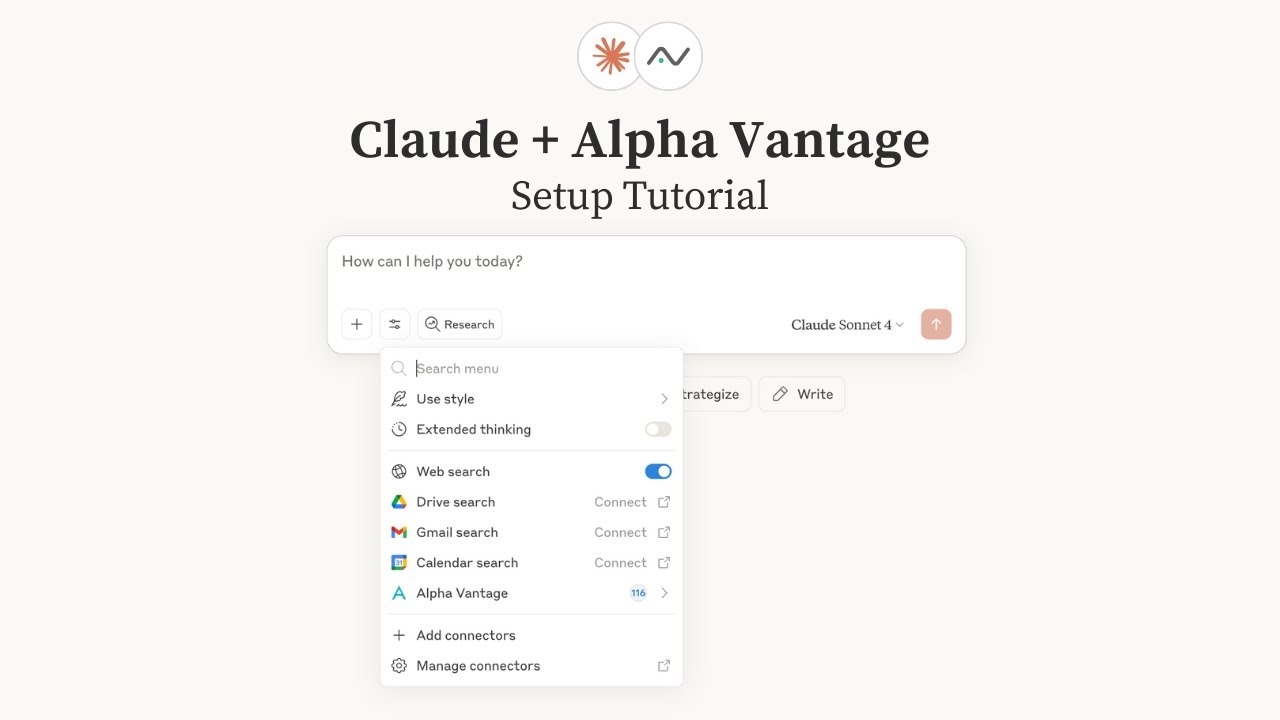
📺 Already have your Alpha Vantage MCP server set up? Below are a few examples of Claude performing various stock analysis & charting tasks:

Query Param Option (Recommended):
- Go to claude.ai/settings/connectors (Web) or Settings → Connectors (Desktop)
- Click "Add Custom Connector"
- Add the MCP server URL with your API key:
https://mcp.alphavantage.co/mcp?apikey=YOUR_API_KEY(replaceYOUR_API_KEYwith your actual Alpha Vantage API key) - Click "Connect"
OAuth Option:
- Go to claude.ai/settings/connectors (Web) or Settings → Connectors (Desktop)
- Click "Add Custom Connector"
- Add the MCP server URL:
https://mcp.alphavantage.co/mcp - Click "Connect"
- Enter your Alpha Vantage API token
- Click "Authorize Access"
See Claude Desktop MCP docs for more info.
Install uv (a modern Python package and project manager):
curl -LsSf https://astral.sh/uv/install.sh | shOpen Claude Desktop developer settings and edit your claude_desktop_config.json file to add the following configuration:
{
  "mcpServers": {
    "alphavantage": {
      "command": "uvx",
      "args": ["av-mcp", "YOUR_API_KEY"]
    }
  }
}
Replace YOUR_API_KEY with your actual Alpha Vantage API key.
Install in ChatGPT
Requirements:
- ChatGPT Plus account (or higher tier)
- Developer mode enabled (beta feature) - see OpenAI's Developer Mode documentation
Setup:
- Go to ChatGPT Settings → Connectors
- Scroll down, enable Advanced settings → Developer mode
- Return to the Apps & Connectors submenu, then click Create in the upper-right corner.
- MCP Server URL:
https://mcp.alphavantage.co/mcp?apikey=YOUR_API_KEY(replaceYOUR_API_KEYwith your actual Alpha Vantage API key). - Authentication: No authentication
Note: When you return to your conversation, your UI will clearly indicate that you are in Developer mode. ChatGPT will retain memory of any previous remarks made within the same chat session; however, these sessions may not be persisted, meaning the conversation generated while Developer mode is active may not be saved or accessible once closed.
Troubleshooting for ChatGPT Plus Accounts
While Developer mode is available for both Plus and Pro accounts, on Plus accounts, first-time MCP tool execution may exhibit inconsistent behavior. This primarily affects large data payloads returned from the MCP server. If you notice that MCP calls abruptly terminate without returning any JSON response, try the following:
-
Confirm Connection
- Confirm the connection by prompting:
List 3 functions available in Alpha Vantage MCP server. - You should see endpoints like
TIME_SERIES_DAILYandTIME_SERIES_INTRADAY.
- Confirm the connection by prompting:
-
Force JSON Passthrough with simple payload
- Use the following prompts in sequence to prime ChatGPT to surface the full payload:
Run ADD_TWO_NUMBERS from Alpha Vantage MCP Server using 3 and 6, and then show the JSON response. - If successful, ChatGPT should ask you to Confirm or Deny the call. Click Confirm.
- If it doesn't, use the 🔄 "Try Again..." button and see if you get the Confirm/Deny prompt.
- If this doesn't work, ask ChatGPT the following, and if it starts
Thinkingmake it Skip, so that it doesn't try the call again and instead outputs its conversational response.Why aren't you receiving a JSON response? - Then, regardless of the response, prompt ChatGPT
Explicitly request a return value from the tool response to verify what the server outputs. - Typically, this gets ChatGPT to ask you to Confirm or Deny the call. Click Confirm.
- Sometimes, ChatGPT will insist it has no active connection to Alpha Vantage MCP Server. Just tell it to "try again".
- If payloads still fail to appear, start a New Chat and try Step #2 again.
- Use the following prompts in sequence to prime ChatGPT to surface the full payload:
-
Force JSON Passthrough with large payload
- Once step #2 has been successful, repeat step #2 with the larger call:
Run TIME_SERIES_DAILY using NVDA, and then show the JSON response. - Use the fallback steps from Step #2 if ChatGPT does not ask you to Confirm or Deny the call.
- Once you observe ChatGPT successfully return part of the raw JSON payload from the larger call, you can typically continue on with more conversational queries.
- Once step #2 has been successful, repeat step #2 with the larger call:
🤖📈 Create agentic workflows for quantitative investing
Configure in OpenAI Agent Builder
Requirements:
- OpenAI account with access to Agent Builder (e.g., billing details added, organization verified)
📺 Watch the setup tutorial. (Click image below.)

To connect OpenAI Agent Builder to this MCP server:
- Do not add a separate MCP Server object. Instead, click on your agent in OpenAI Agent Builder to add the MCP Server directly to the agent.
- Find the Tools section of the agent and click the + button to add a new tool
- Select MCP Server
- Click "+ Server" in the upper right of the "Add MCP server" menu
- Configure the MCP server with the following settings:
- URL:
https://mcp.alphavantage.co/mcp - Label:
Alpha Vantage MCP Server(or any name you prefer) - Description:
Financial market data and technical indicators(or any description you prefer) - Authentication: Select "Access token / API key" (should be default)
- Access Token: Enter your Alpha Vantage API key
- URL:
- Click Connect
- If successful, the next prompt will display all the tools. Scroll to the bottom and click Add.
Recommended Agent Instructions:
Add the following instruction to your agent's configuration to optimize performance:
You are a helpful financial agent with access to market data through Alpha Vantage MCP Server.
When retrieving financial data, examine the Alpha Vantage MCP Server function definitions directly rather than using the SEARCH endpoint.
Install in OpenAI Agents SDK
To use the Alpha Vantage MCP server with OpenAI Agents SDK, see our example agent that demonstrates:
- Interactive financial analysis agent
- Session management for conversation continuity
- Real-time tool execution with Alpha Vantage data
- Support for both HTTP and stdio MCP connections
The example includes a complete setup guide and configuration templates.
💻💵 Code up fintech apps
Install in OpenAI Codex
Requirements:
- ChatGPT Plus account (or higher tier)
See OpenAI Codex for more information.
📺 Watch the setup tutorial. (Click image below.) This video additionally provides guidance on handling setup errors and building complete end-to-end applications which are empowered to fetch market data to power dynamic, data-driven visualizations.

- Download the companion .md file from Github Gist.
- For additional support links, please check the video description on YouTube.
Install uv (a modern Python package and project manager):
curl -LsSf https://astral.sh/uv/install.sh | shInstall Codex CLI v0.34 or later to avoid compatibility issues.
# Install (if not already installed)
npm install -g @openai/codex

# Or update to the latest version
npm update -g @openai/codex

# Verify installation and version
codex --version
Add the following configuration to your Codex MCP server settings by editing ~/.codex/config.toml:
[mcp_servers.alphavantage]
command = "uvx"
args = ["av-mcp", "YOUR_API_KEY"]
Replace YOUR_API_KEY with your actual Alpha Vantage API key.
Run codex in your terminal from your project directory. First-time users will be guided through additional prompts.
Then connect with:
/mcp
Install in VS Code (Visual Studio Code)
See VS Code MCP docs for more info.
Create .vscode/mcp.json (your VS Code MCP config file) in your workspace, and paste into it one of the following configurations, depending on whether you’re connecting remotely or running the server locally.
Paste the following into .vscode/mcp.json:
{
  "servers": {
    "alphavantage": {
      "type": "http",
      "url": "https://mcp.alphavantage.co/mcp?apikey=YOUR_API_KEY"
    }
  }
}
Replace YOUR_API_KEY with your actual Alpha Vantage API key.
First, install uv (a modern Python package and project manager):
curl -LsSf https://astral.sh/uv/install.sh | shThen, paste the following into .vscode/mcp.json:
{
  "servers": {
    "alphavantage": {
      "type": "stdio",
      "command": "uvx",
      "args": ["av-mcp", "YOUR_API_KEY"]
    }
  }
}
Replace YOUR_API_KEY with your actual Alpha Vantage API key.
Open the Chat view and select Agent mode
Install in Cursor
See Cursor MCP docs for more information.
Paste one of the following configurations into your Cursor ~/.cursor/mcp.json file, depending on whether you’re connecting remotely or running the server locally. You may also install in a specific project by creating .cursor/mcp.json in your project folder.
Configure Cursor by editing ~/.cursor/mcp.json:
{
  "mcpServers": {
    "alphavantage": {
      "url": "https://mcp.alphavantage.co/mcp?apikey=YOUR_API_KEY"
    }
  }
}
Replace YOUR_API_KEY with your actual Alpha Vantage API key.
First, install uv (a modern Python package and project manager):
curl -LsSf https://astral.sh/uv/install.sh | shThen, paste the following into your Cursor ~/.cursor/mcp.json file:
{
  "mcpServers": {
    "alphavantage": {
      "command": "uvx",
      "args": ["av-mcp", "YOUR_API_KEY"]
    }
  }
}
Replace YOUR_API_KEY with your actual Alpha Vantage API key.
Install in Claude Code
Requirements:
- Claude Pro account (or higher tier)
See Claude Code MCP docs for more information.
Run one of the following commands, depending on whether you’re connecting remotely or running the server locally.
claude mcp add -t http alphavantage https://mcp.alphavantage.co/mcp?apikey=YOUR_API_KEYReplace YOUR_API_KEY with your actual Alpha Vantage API key.
First, install uv (a modern Python package and project manager):
curl -LsSf https://astral.sh/uv/install.sh | shThen run:
claude mcp add alphavantage -- uvx av-mcp YOUR_API_KEYReplace YOUR_API_KEY with your actual Alpha Vantage API key.
Run claude in your terminal from your project directory.
Then connect with:
/mcp
Install in Gemini CLI
See Gemini CLI Configuration for more information.
Run one of the following commands, depending on whether you’re connecting remotely or running the server locally.
Gemini CLI Remote Server Connection (Recommended):
gemini mcp add -t http alphavantage https://mcp.alphavantage.co/mcp?apikey=YOUR_API_KEYReplace YOUR_API_KEY with your actual Alpha Vantage API key.
Gemini CLI Local Server Connection:
Install uv (a modern Python package and project manager):
curl -LsSf https://astral.sh/uv/install.sh | shThen run:
gemini mcp add alphavantage uvx av-mcp YOUR_API_KEYReplace YOUR_API_KEY with your actual Alpha Vantage API key.
Manual Configuration:
- Open the Gemini CLI settings file. The location is
~/.gemini/settings.json(where~is your home directory). - Add the following to the
mcpServersobject in yoursettings.jsonfile (replaceYOUR_API_KEYwith your actual Alpha Vantage API key):
{
  "mcpServers": {
    "alphavantage": {
      "httpUrl": "https://mcp.alphavantage.co/mcp?apikey=YOUR_API_KEY"
    }
  }
}
Or, for a local server (replace YOUR_API_KEY with your actual Alpha Vantage API key):
{
  "mcpServers": {
    "alphavantage": {
      "command": "uvx",
      "args": ["av-mcp", "YOUR_API_KEY"]
    }
  }
}
If the mcpServers object does not exist, create it.
Optionally filter available tools by category using:
- Query parameter:
?categories=core_stock_apis,alpha_intelligence
Available categories:
core_stock_apis- Core stock market data APIsoptions_data_apis- Options data APIsalpha_intelligence- News sentiment and intelligence APIsfundamental_data- Company fundamentals and financial dataforex- Foreign exchange rates and datacryptocurrencies- Digital and crypto currencies datacommodities- Commodities and precious metals dataeconomic_indicators- Economic indicators and market datatechnical_indicators- Technical analysis indicators and calculationsping- Health check and utility tools
If no categories are specified, all tools will be available.
| Category | Tools |
|---|---|
| core_stock_apis | TIME_SERIES_INTRADAY, TIME_SERIES_DAILY, TIME_SERIES_DAILY_ADJUSTED, TIME_SERIES_WEEKLY, TIME_SERIES_WEEKLY_ADJUSTED, TIME_SERIES_MONTHLY, TIME_SERIES_MONTHLY_ADJUSTED, GLOBAL_QUOTE, REALTIME_BULK_QUOTES, SYMBOL_SEARCH, MARKET_STATUS |
| options_data_apis | REALTIME_OPTIONS, HISTORICAL_OPTIONS |
| alpha_intelligence | NEWS_SENTIMENT, EARNINGS_CALL_TRANSCRIPT, TOP_GAINERS_LOSERS, INSIDER_TRANSACTIONS, ANALYTICS_FIXED_WINDOW, ANALYTICS_SLIDING_WINDOW |
| fundamental_data | COMPANY_OVERVIEW, INCOME_STATEMENT, BALANCE_SHEET, CASH_FLOW, EARNINGS, LISTING_STATUS, EARNINGS_CALENDAR, IPO_CALENDAR |
| forex | FX_INTRADAY, FX_DAILY, FX_WEEKLY, FX_MONTHLY |
| cryptocurrencies | CURRENCY_EXCHANGE_RATE, DIGITAL_CURRENCY_INTRADAY, DIGITAL_CURRENCY_DAILY, DIGITAL_CURRENCY_WEEKLY, DIGITAL_CURRENCY_MONTHLY |
| commodities | WTI, BRENT, NATURAL_GAS, COPPER, ALUMINUM, WHEAT, CORN, COTTON, SUGAR, COFFEE, ALL_COMMODITIES |
| economic_indicators | REAL_GDP, REAL_GDP_PER_CAPITA, TREASURY_YIELD, FEDERAL_FUNDS_RATE, CPI, INFLATION, RETAIL_SALES, DURABLES, UNEMPLOYMENT, NONFARM_PAYROLL |
| technical_indicators | SMA, EMA, WMA, DEMA, TEMA, TRIMA, KAMA, MAMA, VWAP, T3, MACD, MACDEXT, STOCH, STOCHF, RSI, STOCHRSI, WILLR, ADX, ADXR, APO, PPO, MOM, BOP, CCI, CMO, ROC, ROCR, AROON, AROONOSC, MFI, TRIX, ULTOSC, DX, MINUS_DI, PLUS_DI, MINUS_DM, PLUS_DM, BBANDS, MIDPOINT, MIDPRICE, SAR, TRANGE, ATR, NATR, AD, ADOSC, OBV, HT_TRENDLINE, HT_SINE, HT_TRENDMODE, HT_DCPERIOD, HT_DCPHASE, HT_PHASOR |
| ping | PING, ADD_TWO_NUMBERS |
- core_stock_apis
- options_data_apis
- alpha_intelligence
- fundamental_data
- forex
- cryptocurrencies
- commodities
- economic_indicators
- technical_indicators
- ping
💡 Each of these MCP tools maps to a corresponding Alpha Vantage API endpoint. If you are interested in the full API specs (in addition to the brief tool descriptions below), please refer to the Alpha Vantage API documentation.
| Category | Tool | Description |
|---|---|---|
| core_stock_apis | TIME_SERIES_INTRADAY |
Current and 20+ years of historical intraday OHLCV data |
| core_stock_apis | TIME_SERIES_DAILY |
Daily time series (OHLCV) covering 20+ years |
| core_stock_apis | TIME_SERIES_DAILY_ADJUSTED |
Daily adjusted OHLCV with split/dividend events |
| core_stock_apis | TIME_SERIES_WEEKLY |
Weekly time series (last trading day of week) |
| core_stock_apis | TIME_SERIES_WEEKLY_ADJUSTED |
Weekly adjusted time series with dividends |
| core_stock_apis | TIME_SERIES_MONTHLY |
Monthly time series (last trading day of month) |
| core_stock_apis | TIME_SERIES_MONTHLY_ADJUSTED |
Monthly adjusted time series with dividends |
| core_stock_apis | GLOBAL_QUOTE |
Latest price and volume for a ticker |
| core_stock_apis | REALTIME_BULK_QUOTES |
Realtime quotes for up to 100 symbols |
| core_stock_apis | SYMBOL_SEARCH |
Search for symbols by keywords |
| core_stock_apis | MARKET_STATUS |
Current market status worldwide |
| Category | Tool | Description |
|---|---|---|
| options_data_apis | REALTIME_OPTIONS |
Realtime US options data with Greeks |
| options_data_apis | HISTORICAL_OPTIONS |
Historical options chain for 15+ years |
| Category | Tool | Description |
|---|---|---|
| alpha_intelligence | NEWS_SENTIMENT |
Live and historical market news & sentiment |
| alpha_intelligence | EARNINGS_CALL_TRANSCRIPT |
Earnings call transcripts with LLM sentiment |
| alpha_intelligence | TOP_GAINERS_LOSERS |
Top 20 gainers, losers, and most active |
| alpha_intelligence | INSIDER_TRANSACTIONS |
Latest and historical insider transactions |
| alpha_intelligence | ANALYTICS_FIXED_WINDOW |
Advanced analytics over fixed windows |
| alpha_intelligence | ANALYTICS_SLIDING_WINDOW |
Advanced analytics over sliding windows |
| Category | Tool | Description |
|---|---|---|
| fundamental_data | COMPANY_OVERVIEW |
Company information, financial ratios, and metrics |
| fundamental_data | INCOME_STATEMENT |
Annual and quarterly income statements |
| fundamental_data | BALANCE_SHEET |
Annual and quarterly balance sheets |
| fundamental_data | CASH_FLOW |
Annual and quarterly cash flow statements |
| fundamental_data | EARNINGS |
Annual and quarterly earnings data |
| fundamental_data | LISTING_STATUS |
Listing and delisting data for equities |
| fundamental_data | EARNINGS_CALENDAR |
Earnings calendar for upcoming earnings |
| fundamental_data | IPO_CALENDAR |
Initial public offering calendar |
| Category | Tool | Description |
|---|---|---|
| forex | FX_INTRADAY |
Intraday foreign exchange rates |
| forex | FX_DAILY |
Daily foreign exchange rates |
| forex | FX_WEEKLY |
Weekly foreign exchange rates |
| forex | FX_MONTHLY |
Monthly foreign exchange rates |
| Category | Tool | Description |
|---|---|---|
| cryptocurrencies | CURRENCY_EXCHANGE_RATE |
Exchange rate between digital/crypto currencies |
| cryptocurrencies | DIGITAL_CURRENCY_INTRADAY |
Intraday time series for digital currencies |
| cryptocurrencies | DIGITAL_CURRENCY_DAILY |
Daily time series for digital currencies |
| cryptocurrencies | DIGITAL_CURRENCY_WEEKLY |
Weekly time series for digital currencies |
| cryptocurrencies | DIGITAL_CURRENCY_MONTHLY |
Monthly time series for digital currencies |
| Category | Tool | Description |
|---|---|---|
| commodities | WTI |
West Texas Intermediate (WTI) crude oil prices |
| commodities | BRENT |
Brent crude oil prices |
| commodities | NATURAL_GAS |
Henry Hub natural gas spot prices |
| commodities | COPPER |
Global copper prices |
| commodities | ALUMINUM |
Global aluminum prices |
| commodities | WHEAT |
Global wheat prices |
| commodities | CORN |
Global corn prices |
| commodities | COTTON |
Global cotton prices |
| commodities | SUGAR |
Global sugar prices |
| commodities | COFFEE |
Global coffee prices |
| commodities | ALL_COMMODITIES |
All commodities prices |
| Category | Tool | Description |
|---|---|---|
| economic_indicators | REAL_GDP |
Real Gross Domestic Product |
| economic_indicators | REAL_GDP_PER_CAPITA |
Real GDP per capita |
| economic_indicators | TREASURY_YIELD |
Daily treasury yield rates |
| economic_indicators | FEDERAL_FUNDS_RATE |
Federal funds rate (interest rates) |
| economic_indicators | CPI |
Consumer Price Index |
| economic_indicators | INFLATION |
Inflation rates |
| economic_indicators | RETAIL_SALES |
Retail sales data |
| economic_indicators | DURABLES |
Durable goods orders |
| economic_indicators | UNEMPLOYMENT |
Unemployment rate |
| economic_indicators | NONFARM_PAYROLL |
Non-farm payroll data |
| Category | Tool | Description |
|---|---|---|
| technical_indicators | SMA |
Simple moving average (SMA) values |
| technical_indicators | EMA |
Exponential moving average (EMA) values |
| technical_indicators | WMA |
Weighted moving average (WMA) values |
| technical_indicators | DEMA |
Double exponential moving average (DEMA) values |
| technical_indicators | TEMA |
Triple exponential moving average (TEMA) values |
| technical_indicators | TRIMA |
Triangular moving average (TRIMA) values |
| technical_indicators | KAMA |
Kaufman adaptive moving average (KAMA) values |
| technical_indicators | MAMA |
MESA adaptive moving average (MAMA) values |
| technical_indicators | VWAP |
Volume weighted average price (VWAP) for intraday time series |
| technical_indicators | T3 |
Triple exponential moving average (T3) values |
| technical_indicators | MACD |
Moving average convergence / divergence (MACD) values |
| technical_indicators | MACDEXT |
Moving average convergence / divergence values with controllable moving average type |
| technical_indicators | STOCH |
Stochastic oscillator (STOCH) values |
| technical_indicators | STOCHF |
Stochastic fast (STOCHF) values |
| technical_indicators | RSI |
Relative strength index (RSI) values |
| technical_indicators | STOCHRSI |
Stochastic relative strength index (STOCHRSI) values |
| technical_indicators | WILLR |
Williams' %R (WILLR) values |
| technical_indicators | ADX |
Average directional movement index (ADX) values |
| technical_indicators | ADXR |
Average directional movement index rating (ADXR) values |
| technical_indicators | APO |
Absolute price oscillator (APO) values |
| technical_indicators | PPO |
Percentage price oscillator (PPO) values |
| technical_indicators | MOM |
Momentum (MOM) values |
| technical_indicators | BOP |
Balance of power (BOP) values |
| technical_indicators | CCI |
Commodity channel index (CCI) values |
| technical_indicators | CMO |
Chande momentum oscillator (CMO) values |
| technical_indicators | ROC |
Rate of change (ROC) values |
| technical_indicators | ROCR |
Rate of change ratio (ROCR) values |
| technical_indicators | AROON |
Aroon (AROON) values |
| technical_indicators | AROONOSC |
Aroon oscillator (AROONOSC) values |
| technical_indicators | MFI |
Money flow index (MFI) values |
| technical_indicators | TRIX |
1-day rate of change of a triple smooth exponential moving average (TRIX) values |
| technical_indicators | ULTOSC |
Ultimate oscillator (ULTOSC) values |
| technical_indicators | DX |
Directional movement index (DX) values |
| technical_indicators | MINUS_DI |
Minus directional indicator (MINUS_DI) values |
| technical_indicators | PLUS_DI |
Plus directional indicator (PLUS_DI) values |
| technical_indicators | MINUS_DM |
Minus directional movement (MINUS_DM) values |
| technical_indicators | PLUS_DM |
Plus directional movement (PLUS_DM) values |
| technical_indicators | BBANDS |
Bollinger bands (BBANDS) values |
| technical_indicators | MIDPOINT |
Midpoint values - (highest value + lowest value)/2 |
| technical_indicators | MIDPRICE |
Midpoint price values - (highest high + lowest low)/2 |
| technical_indicators | SAR |
Parabolic SAR (SAR) values |
| technical_indicators | TRANGE |
True range (TRANGE) values |
| technical_indicators | ATR |
Average true range (ATR) values |
| technical_indicators | NATR |
Normalized average true range (NATR) values |
| technical_indicators | AD |
Chaikin A/D line (AD) values |
| technical_indicators | ADOSC |
Chaikin A/D oscillator (ADOSC) values |
| technical_indicators | OBV |
On balance volume (OBV) values |
| technical_indicators | HT_TRENDLINE |
Hilbert transform, instantaneous trendline (HT_TRENDLINE) values |
| technical_indicators | HT_SINE |
Hilbert transform, sine wave (HT_SINE) values |
| technical_indicators | HT_TRENDMODE |
Hilbert transform, trend vs cycle mode (HT_TRENDMODE) values |
| technical_indicators | HT_DCPERIOD |
Hilbert transform, dominant cycle period (HT_DCPERIOD) values |
| technical_indicators | HT_DCPHASE |
Hilbert transform, dominant cycle phase (HT_DCPHASE) values |
| technical_indicators | HT_PHASOR |
Hilbert transform, phasor components (HT_PHASOR) values |
| Category | Tool | Description |
|---|---|---|
| ping | PING |
Health check tool that returns 'pong' |
| ping | ADD_TWO_NUMBERS |
Example tool for adding two numbers |