
Quickstart guide
Installing the module
Installing the Markdown module follows the standard steps and at its simplest that is done by running the following from your project root:
composer require drupal/markdown
You also need to install a parser and the recommended one to go with is The PHP League CommonMark parser which similarly can be installed with:
composer require league/commonmark:^1
Although the Markdown module is compatible with Common Mark 2, Drush is not. See league/commonmark:^2 incompatible with drush/drush for details.
Enabling the module
Just like installation, enabling is a standard affair and can be done via drush (drush en -y markdown) or from the administration modules page (/admin/modules) by filling the checkbox for the Markdown module and clicking on the Install button.

Configuring the module
Next up, let's configure the module from the Markdown configuration page (/admin/config/content/markdown) which can be found in the administration menu via Configuration > Content Authoring > Markdown. Once there, you should see something like the following:

If you don't see an indication that at least the CommonMark parsers are enabled, first make sure you also installed the commonmark library in the section Installing the module. Then, note that it may be needed to rebuild the cache for the CommonMark classes to be correctly recognised, especially when you installed the library after enabling the Markdown module.
The PHP League CommonMark parser actually provides two parsers - the base CommonMark and the CommonMark GFM (Github Flavored Markdown"). For this guide, we'll make the latter the default, so use the CommonMark GFM drop button to select its "Set as default" option.

Next, let's configure the CommonMark GFM parser's site-wide settings by clicking to "Edit".

On this page, note that CommonMark GFM is shown as the parser we're currently configuring. Also note that there are a number of required extensions for the CommonMark GFM parser that will add extra functionality, such as autolinking email addresses and websites, creating tables and more! The enabled extensions are indicated by Required by: CommonMark GFM with an example shown in the image above inside the box highlighted in orange.
For now, we'll leave the default settings for this parser. Scroll down to the bottom of the page and click on Save configuration.
Create a text format
To use the configuration just set, we need to create a text format that uses the Markdown module. This can be done on the Text formats and editors page (/admin/config/content/formats) by clicking on +Add text format button.

On this page do the following:
- In the Name field, enter in "Markdown"
- For Roles, fill the checkboxes as applicable e.g. Administrator
- For Enabled filters, fill the checkbox for the Markdown module
- Scroll down to the Filter settings section and in the Markdown > Parser tab, select the CommonMark GFM option
- Leave everything else as is, and click on the Save configuration button

Write your first page using Markdown
Now for the fun part - writing some Markdown!
Let's add a new basic page (/node/add/page) and then:
- In the Title field enter in "Hello, world!"
- In the Body field enter in:
## It works! I can do **bold**, _italic_ and [links](drupal.org) easier than ever! - Select Markdown from the Text format select box
- Make sure the Published checkbox is filled
- Lastly, click on the Save button

If you now view the page just created, you should see something like the following:
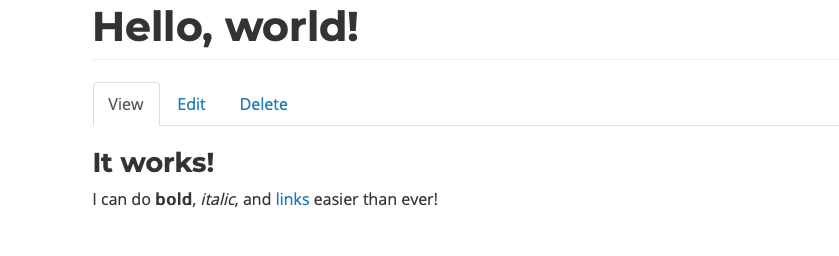
Congratulations, you have created your first Markdown page!
Next steps
From here, the world is your veritable Markdown oyster - here are a few links that you might want to follow up with:
Help improve this page
You can:
- Log in, click Edit, and edit this page
- Log in, click Discuss, update the Page status value, and suggest an improvement
- Log in and create a Documentation issue with your suggestion
